Stintly™ is built on an offline-first principle: every piece of data you enter — clients, invoices, expenses, time entries, jobs — lives in a local SQLite database on your iPhone. Nothing requires a cloud account or login. This architecture keeps your financial data private and the app fully functional without an internet connection. This guide explains how to keep that data safe with iCloud backup, how to share it with your accountant using exports, how to bulk-import transactions from your bank, and how to lock the app with Face ID or Touch ID.
Stintly™'s Offline-First Approach
Because all data is stored locally on your device, there is no server that holds your records. This means:
- The app works on a plane, in a basement, at a remote job site — no signal required.
- Your financial data is never processed or stored by a third-party cloud service.
- You are in complete control of who sees your data and when.
The tradeoff is that if you lose your device without a backup, your data is gone. That's why enabling iCloud backup is the single most important setup step for any Stintly user.
Stintly never requires an account or login. All data stays on your device unless you choose to back it up with iCloud or export it manually.
iCloud Backup
iCloud backup keeps a copy of your Stintly database in your personal iCloud storage so you can restore it after a device upgrade, replacement, or accidental deletion. To enable it, go to Settings → Data Sync in the app and turn on iCloud Backup.
Once enabled, Stintly participates in iOS's standard iCloud backup process. Your data is included in your device's iCloud backup whenever it runs (typically overnight while the device is charging and on Wi-Fi). You can verify the last backup time in iOS Settings → [Your Name] → iCloud → iCloud Backup.
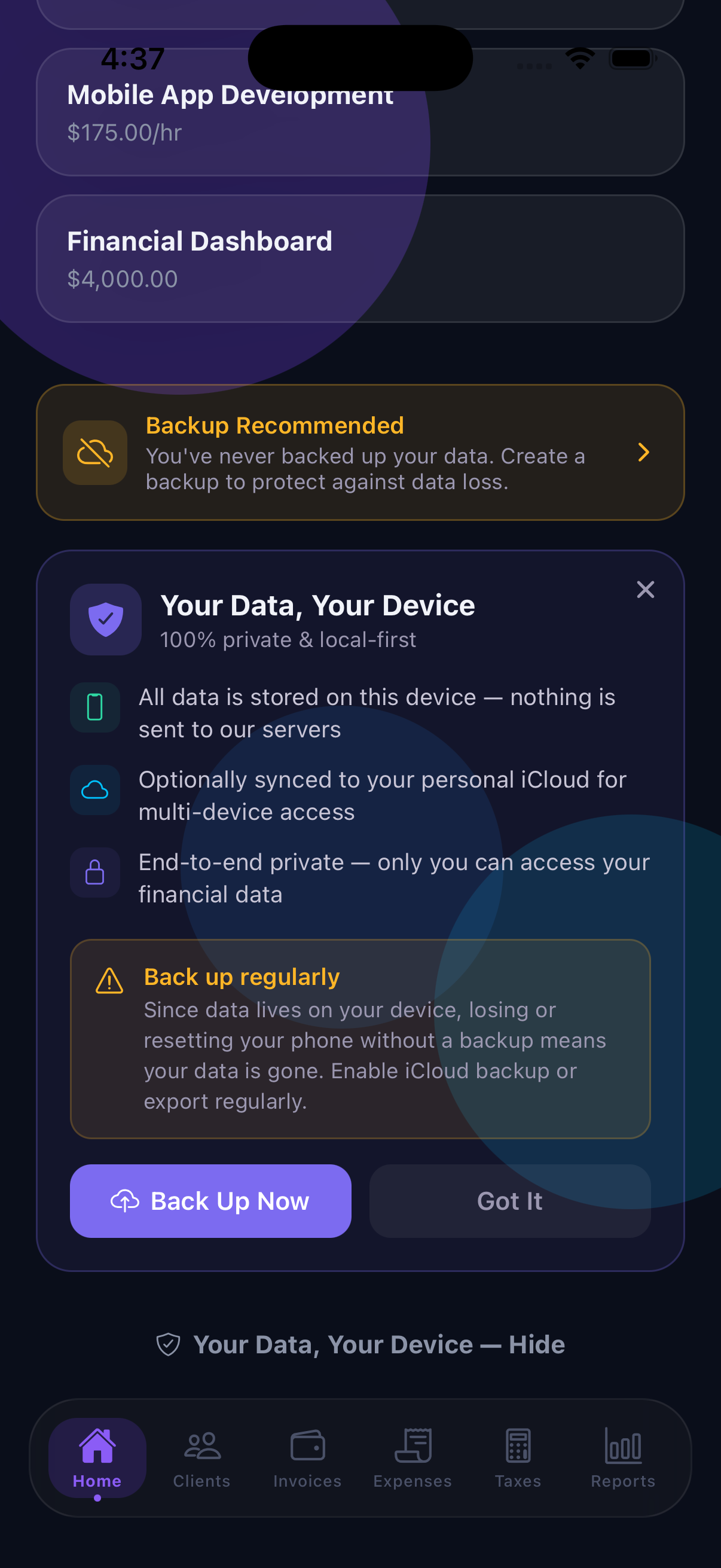
If you use Stintly on more than one iPhone or iPad, iCloud keeps those devices in sync through Apple's infrastructure. Changes made on one device — a new invoice, a logged expense — appear on your other devices automatically. No manual transfer needed.
To restore your data on a new device, simply sign in with the same Apple ID and restore from an iCloud backup during device setup. When you open Stintly, your data will be there.
Exporting Your Data
Whether you're handing off records to an accountant, importing into accounting software, or filing taxes, Stintly can export your data in several formats. To access exports, go to Reports → Export and choose the format and date range you need.
For most exports, you can choose a date range — a specific month, quarter, or full year — so you only export the records relevant to the recipient. The CSV export includes every field: date, vendor, amount, category, notes, client, job, and payment status, giving your accountant the full picture without having to ask follow-up questions.
Bank Statement Import
If you have a backlog of expenses in your bank account that you haven't yet logged in Stintly, bank statement import lets you catch up in bulk. Download a CSV statement from your bank's website (most banks offer this under Account History or Statements), then go to Expenses → Import → Bank Statement and select the file.
Stintly reads each transaction row and presents them for review. You can:
- Assign a category to each transaction from Stintly's Schedule C-aligned category list.
- Add a vendor name if the bank description is cryptic (e.g., "POS DEBIT 4821" can be renamed "Home Depot").
- Mark transactions as personal to exclude them from your business records.
- Add notes with the business purpose for meals, travel, and similar deductible expenses.
Once you confirm the import, each transaction becomes a standard expense record in Stintly, indistinguishable from entries you typed manually. Bank import is especially useful at the start of the year when catching up on the previous year's records, or when switching to Stintly from a different system.
App Lock
If your iPhone is shared, or you simply want an extra layer of protection over your financial data, App Lock prevents anyone without your Face ID, Touch ID, or device passcode from opening Stintly. To enable it, go to Settings → App Lock and toggle it on.
When App Lock is active:
- Every time you open Stintly from the home screen, it immediately requests biometric authentication.
- If you switch to another app and return, Stintly locks again after a brief grace period.
- If biometric authentication fails three times, iOS falls back to your device passcode.
App Lock uses Apple's LocalAuthentication framework and never transmits your biometric data anywhere. It's entirely handled on-device by iOS, the same system that protects Apple Pay and banking apps.
Tips for Keeping Your Data Safe
- Enable iCloud Backup before you need it — restoring from a backup after a device failure only works if a recent backup exists. Enable it on day one, not after something goes wrong.
- Export quarterly for your accountant — send a CSV or QuickBooks export at the end of each quarter. It keeps your accountant current and prevents a year-end scramble.
- Back up before a major iOS update — while rare, iOS updates can occasionally affect app data. Trigger a manual iCloud backup from iOS Settings right before updating to be safe.
- Use App Lock on a shared device — if anyone else ever touches your phone (family members, coworkers), App Lock ensures your income, invoices, and client data remain private.
- Keep at least one off-device copy — iCloud is excellent, but for critical year-end data, also export a CSV and save it to Files or email it to yourself. Having two copies in different locations is always safer than one.
Your data. Your device. Your control.
Download Stintly free on the App Store. No account required — just open the app, start adding clients and jobs, and your data stays exactly where it belongs: with you.
Download on the App StoreNext: learn how to generate tax reports and prepare for filing.