Clients and Jobs are the backbone of Stintly™. Every hour you log, every invoice you send, and every expense you track links back to a client and a job. Keeping this data organized gives you instant visibility into who your most profitable clients are and which projects are worth your time.
Adding a New Client
To add a client, tap the Clients tab at the bottom of the screen, then tap the + button in the top-right corner. Fill in the client details:
- Name - The client's full name or company name. This appears on invoices and reports.
- Email - Used for sending invoices directly from Stintly.
- Phone - Optional, but handy for quick reference.
- Address - Added to invoices automatically when filled in.
- Notes - Any context you want to remember: billing preferences, special rates, contract details.
Tap Save to create the client. You can edit any of these details at any time by tapping the client's name and then the edit icon.
Creating Jobs for a Client
Jobs represent individual projects or scopes of work for a client. One client can have multiple jobs - for example, a recurring monthly retainer and a one-off website redesign would each be their own job.
To create a job, open a client's profile and tap New Job. You'll set:
- Description - A clear label for the job, like "Kitchen Remodel" or "SEO Audit Q1."
- Budget - The total amount the client has agreed to pay. Stintly tracks your progress against this in real time.
- Hourly Rate - The rate you charge for time on this job. This can differ from your default rate.
- Materials - Add any parts or supplies upfront, or add them later as you purchase them.
You can also set a job status - Active, On Hold, or Completed - to keep your job list organized.
Job Detail View
Tap any job to open the detail view. This is your command center for the project. From here you can see:
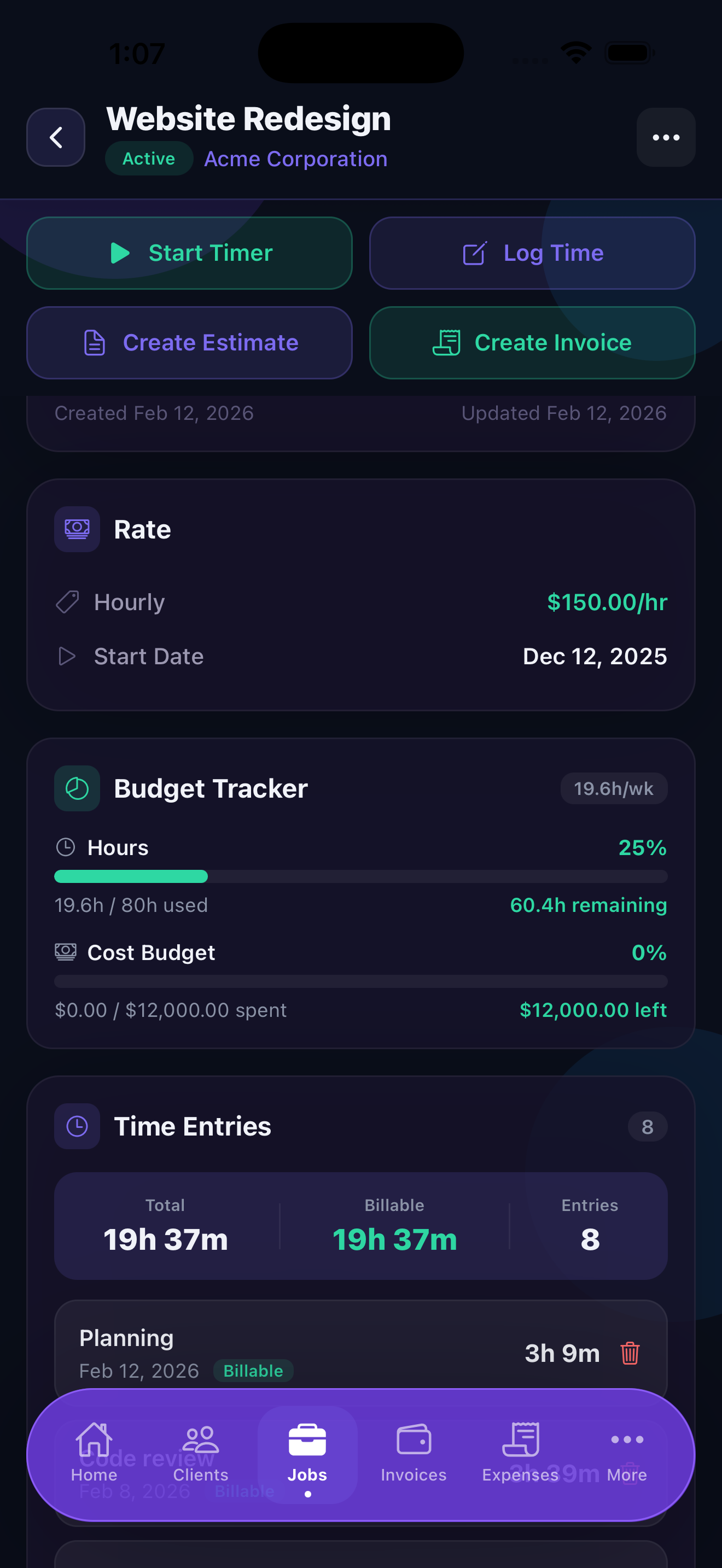
- Time entries - Every hour logged against this job, with notes and timestamps.
- Expenses - Any costs you've recorded, categorized automatically for tax purposes.
- Materials - Parts and supplies tracked separately from labor expenses.
- Budget progress - A live bar showing how much of the budget has been used, color-coded so you can spot budget overruns at a glance.
The job detail view also shows your effective hourly rate for the job - total revenue divided by total hours worked. If this number is lower than your target rate, it's a signal to adjust your pricing on future similar jobs.
Client Health Scores and Insights
Available on Pro, each client gets a health score based on payment history, job frequency, and revenue trend. A high score means a reliable, consistent client. A low score may signal late payments or declining engagement.
Stintly surfaces these insights on the client list so you can prioritize your best clients and address issues before they become problems. Tap a client's health badge to see the breakdown: payment speed, average invoice value, months active, and more.
Profitability Per Client and Per Job
Stintly calculates profit for every client and every job by subtracting tracked expenses and material costs from invoiced revenue. You can view profitability:
- Per client - Total revenue, total costs, and net profit for all jobs combined.
- Per job - Breakdown within a single project, showing exactly where your margin came from.
These numbers update in real time as you log time and record expenses. You don't need to run a report - just open the client or job and the profit figure is right there.
Churn Prediction
Available on Premium, Stintly's churn prediction feature flags clients who show signs of going quiet - declining job frequency, longer gaps between invoices, or reduced average project size. These clients appear with a warning indicator so you can reach out proactively before they take their work elsewhere.
Catching a drifting client early is far easier than winning them back after they've moved on. Stintly's churn alerts give you a head start.
Tips for Getting the Most Out of Clients & Jobs
- Keep client records current. An outdated email means invoices bounce. Spend 30 seconds updating contact details whenever something changes.
- Use job templates for repeat work. If you do the same type of job regularly, duplicate an existing job as a starting point rather than building from scratch each time.
- Check client health regularly. Make it a weekly habit to glance at your client list sorted by health score. Declining scores are early warnings worth acting on.
- Set realistic budgets. Your budget progress bar is only useful if the budget reflects reality. If a job routinely goes over budget, adjust your estimates on future quotes.
Ready to get organized?
Download Stintly and start managing your clients and jobs with clarity. Your first client is free to add - no subscription required to get started.
Download on the App Store