Keeping track of what needs to happen next is one of the hardest parts of running a freelance business. Client requests, invoice follow-ups, job deadlines, and your own to-dos all compete for attention. Stintly™'s Tasks and Calendar features pull all of that into one place so nothing slips through the cracks.
Creating Tasks
To create a task manually, tap the Tasks tab and then the + button. Each task has:
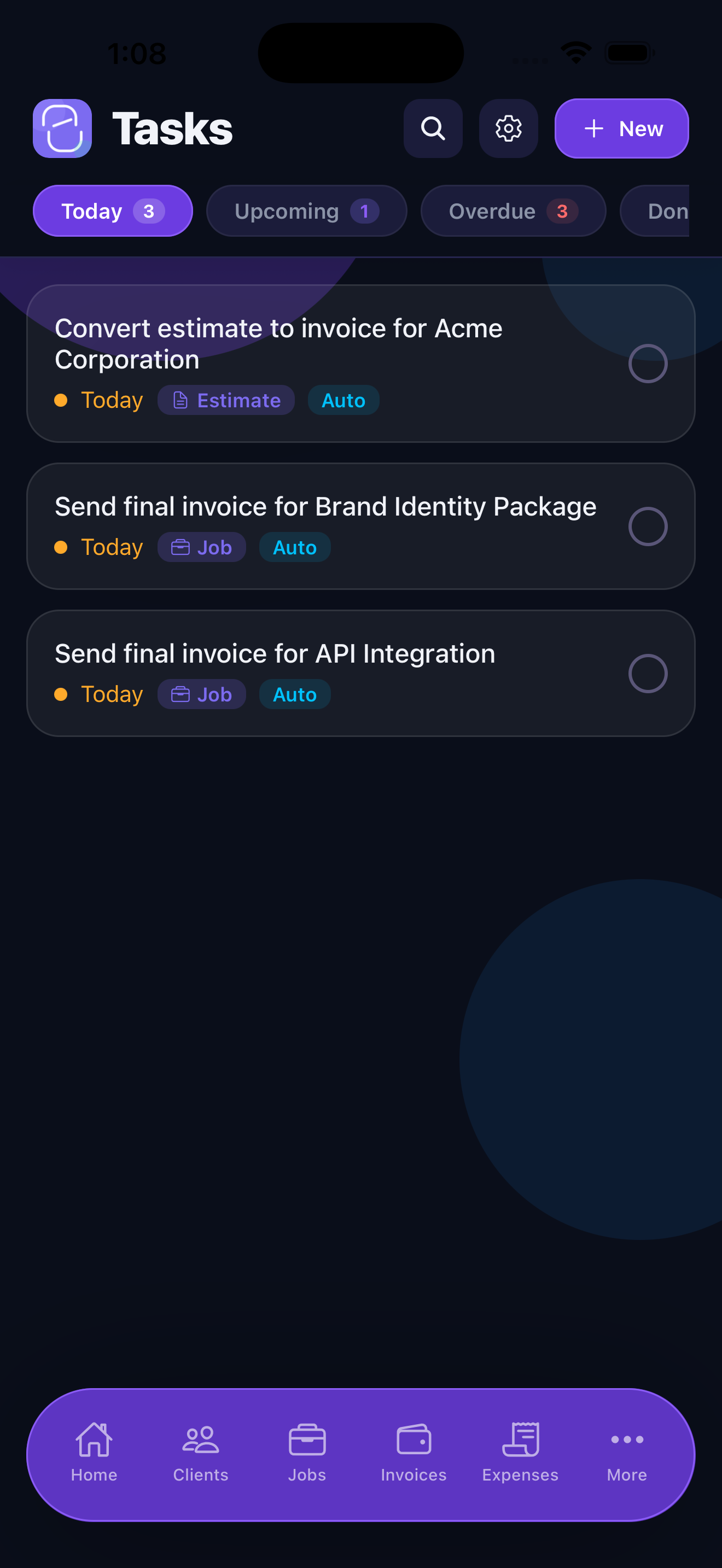
- Title - A clear, action-oriented description of what needs to be done. Good titles start with a verb: "Send proposal to Acme," "Order roofing materials," "Follow up on invoice #42."
- Due date - When the task needs to be completed. Tasks past their due date appear in red so they're impossible to miss.
- Priority - Urgent, Normal, or Low. Use Urgent sparingly so it actually means something when you see it.
- Linked job or client - Attach the task to a specific job or client so it appears in that record's activity timeline. This is especially useful for tasks that depend on job progress.
Tap Save to create the task. It immediately appears in your task list sorted by due date, with high-priority items surfaced at the top within each day.
Auto-Generated Tasks
Stintly automatically creates tasks based on events in your workflow so you don't have to remember to create them yourself. Tasks are auto-generated for:
- Invoice due dates - When an invoice is due, a task appears reminding you to confirm payment was received.
- Overdue invoices - If an invoice passes its due date without being marked paid, Stintly creates a follow-up task prompting you to reach out to the client.
- Job deadlines - If you set a deadline on a job, a task appears a few days before to remind you the deadline is approaching.
- Inactive client check-ins - If a client you've worked with regularly has been quiet for an unusually long time, Stintly creates a check-in task so you can re-engage proactively.
Auto-generated tasks are labeled with a small lightning bolt icon so you can distinguish them from tasks you created manually. You can complete, reschedule, or dismiss any auto-generated task just like a manual one.
Follow-Up Reminders
The Follow-Ups section surfaces AI-powered proactive reminders for situations that need your attention - even if you haven't explicitly created a task for them yet.
Stintly monitors your data and generates follow-up reminders for:
- Overdue invoices - "Invoice #38 for $1,800 is 12 days past due. Would you like to send a reminder to Johnson Landscaping?" Tap the reminder to send the follow-up email directly from Stintly.
- Unanswered quotes - If you sent a quote more than a week ago and haven't heard back, Stintly prompts you to follow up while the client is still warm.
- Inactive clients - Clients who haven't had activity in longer than their usual cycle get flagged so you can check in before they book elsewhere.
- Approaching job deadlines - A heads-up when a job's due date is within 48 hours and it's still marked as active.
Follow-up reminders are suggestions, not demands. Each one has a clear action button (Send Email, Call, Dismiss) so you can handle it in one tap or ignore it if the timing isn't right.
Proactive Follow-ups Screen
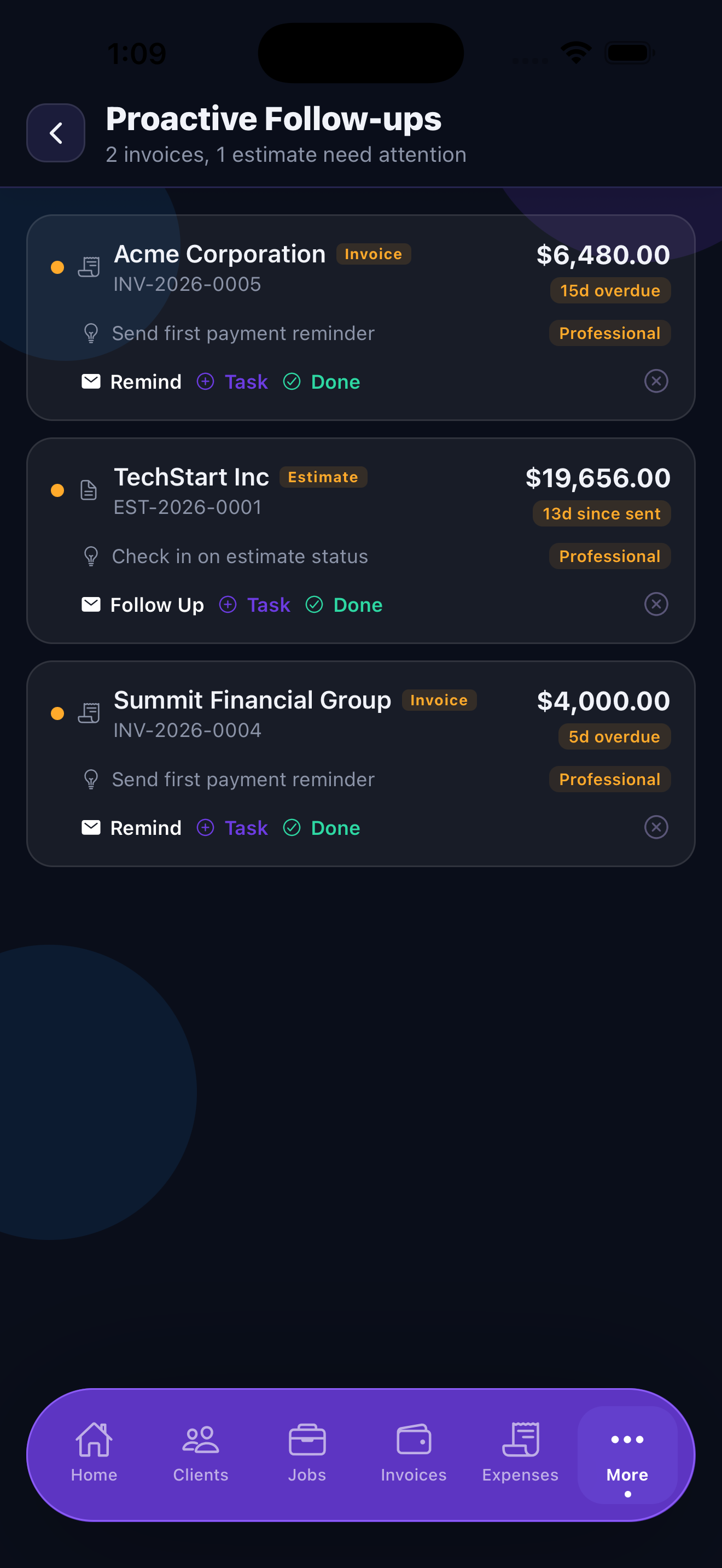
In addition to follow-up reminders on the Tasks tab, Stintly has a dedicated Proactive Follow-ups screen accessible from the More menu. This screen consolidates all items that need your attention into a single, prioritized queue.
The follow-up queue organizes items by type:
- Overdue invoices — shows the invoice number, amount, client name, and how many days past due. Tap to send a reminder email with the invoice PDF attached.
- Stale estimates — estimates sent to clients that haven't been accepted or rejected within the expected window. Shows days since sent and expiry date.
- Dormant clients — clients with no recent activity who may be drifting away. Shows the last invoice date and suggested re-engagement action.
Each follow-up card has quick action buttons: Email Client, Create Task, Mark Done, or Dismiss. The Email action opens a pre-filled message with context about the overdue invoice or stale estimate, so you can send a professional follow-up in seconds.
Check your Proactive Follow-ups screen at the start of each work day. It takes 60 seconds and can recover thousands of dollars in overdue payments.
Calendar View
The Calendar view combines tasks, invoice due dates, and job deadlines into a single monthly or weekly view. Instead of context-switching between your task list, invoices, and jobs, you see everything on one timeline.
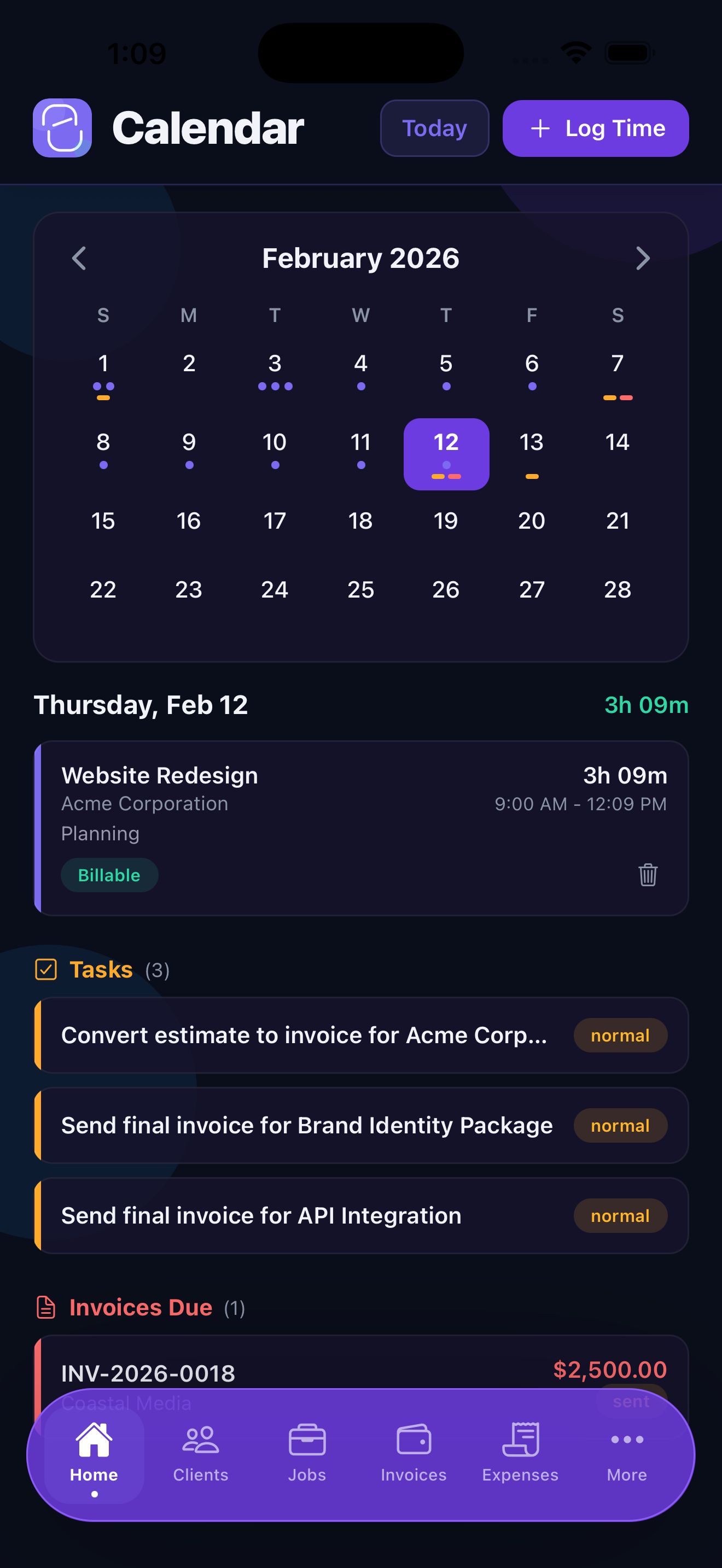
Each calendar event is color-coded by type:
- Purple - Manual tasks you created
- Blue - Invoice due dates (light blue for upcoming, solid blue for due today)
- Amber - Job deadlines
- Red - Overdue items that have passed their date
Tap any day in the calendar to see a list of everything happening that day. Tap any event to open the associated task, invoice, or job directly. You can also switch between month view (good for planning) and week view (good for day-to-day execution).
Task Completion and Tracking
Completing a task is a single tap on the circle to the left of the task title. The task moves to your Completed list, which is available by tapping Show Completed at the bottom of the task list.
Completed tasks stay visible for 30 days before being archived, giving you a short-term record of what you've accomplished. This is useful for reviewing your week and for understanding patterns in your workload over time.
You can also reopen a completed task if you need to - tap it in the completed list and tap Mark Incomplete. This happens more often than you'd think when a client comes back with changes after you've closed out a to-do.
Tips for Staying on Top of Your Work
The best task management system is one you actually use consistently. Stintly is designed to reduce the overhead so that staying organized takes seconds, not minutes.
- Let Stintly auto-create tasks for you. The more you lean on auto-generated tasks and follow-up reminders, the less mental overhead you carry. You don't need to remember to chase a late invoice - Stintly will remind you.
- Use follow-ups to stay on top of payments. Late payments are a cash flow killer. The follow-up system is specifically designed to prompt you to reach out before a late invoice becomes a serious problem.
- Check the calendar view daily. Spending 60 seconds each morning scanning your calendar gives you situational awareness for the day. You'll know what's due, what needs attention, and what's coming up without having to dig through multiple lists.
- Link tasks to jobs and clients. A task attached to a job or client creates a paper trail. When a client asks "did you follow up on that quote?", the linked task shows exactly when you did.
- Keep high-priority tasks genuinely important. If everything is high priority, nothing is. Reserve the High priority label for tasks that will have a real business consequence if missed today.
Never miss a follow-up again.
Download Stintly and let intelligent task management handle the reminders, so you can focus on the work that actually moves your business forward.
Download on the App Store