If you bill by the hour, accurate time tracking is the difference between getting paid for everything you do and quietly giving away hours of work. Stintly™'s built-in timer and time log tools make it easy to capture every billable minute — and turn them into invoices with one tap.
Starting the Timer
The fastest way to start tracking time is directly from a job. Tap the Jobs tab, open the job you're working on, and tap the large Start Timer button. The timer begins immediately and a persistent indicator appears in the app so you always know it's running.
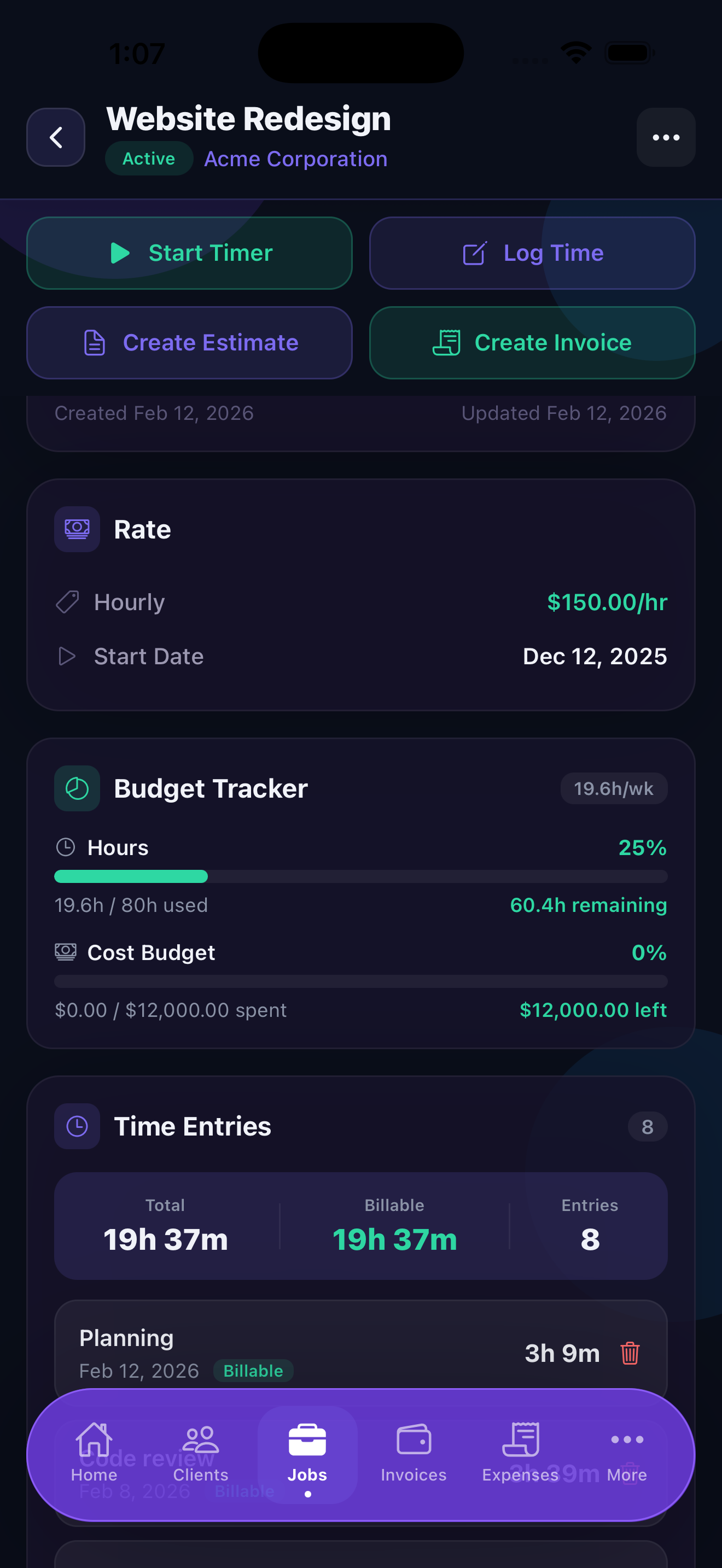
You can navigate away from the Jobs tab — check your invoices, log an expense, look up a client — and the timer keeps running in the background. The running timer is always visible as a banner at the top of the screen. Tap it any time to jump back to the active job.
When you're done working, tap Stop. Stintly records the elapsed time as a new time entry on that job, pre-filled with the start time, end time, and duration. You can edit the description before saving.
Manual Time Entries
If you forgot to start the timer, or if you track time after the fact (common for phone calls, meetings, and short tasks), you can add a manual time entry. Open the job and tap + Time Entry. Fill in:
- Date — when the work happened
- Hours — enter as a decimal (e.g., 1.5 for an hour and a half) or use the hours/minutes picker
- Description — what you worked on (e.g., "Initial discovery call" or "Homepage revision round 2"). This description appears as the line item description on the invoice.
- Billable / Non-billable — toggle this to control whether the entry counts toward the invoice total. Non-billable time is still tracked for your own records.
Manual entries are identical to timer-generated entries in every other way — they appear in the time log, count toward the job total, and can be invoiced.
Timer Features Pro
Stintly Pro adds two powerful timer features that reduce friction and improve accuracy:
Idle Detection — if the timer is running and your phone has been sitting untouched for more than 5 minutes, Stintly will ask when you come back: "Were you still working?" You can keep the idle time, discard it, or adjust the stop time. This prevents accidentally billing clients for time you spent away from your desk.
Auto Time Rounding — some billing arrangements round time to the nearest 6, 15, 30, or 60 minutes. Enable this in Settings → Time Tracking → Rounding and choose your increment. Stintly applies the rounding rule automatically when you stop the timer, so the duration on the time entry already reflects the billable amount.
Idle detection and rounding work together to give you time logs you can hand to clients with confidence — no embarrassing gaps or unexplained precision.
Viewing Time Logs Per Job and Per Client
To see all time entries for a specific job, open that job from the Jobs tab. The Time section shows every entry in chronological order with the date, duration, description, and billable/non-billable status. The total billable hours for the job are shown at the top of this section.
To see time across all jobs for a specific client, go to the Clients tab, tap the client, and select the Time tab on their detail screen. This gives you a consolidated view of every hour you've worked for that client across all their jobs — useful for understanding long-term relationships and spotting scope creep.
You can also view time from the Reports tab. Go to Reports → Time to see a breakdown of billable vs. non-billable hours by client, job, or time period.
Converting Time Entries to Invoices Pro
When you're ready to bill for a job, you don't have to manually re-enter the time on an invoice. Stintly Pro can generate an invoice automatically from your billable time entries.
Open the job and tap Create Invoice from Time. Stintly presents you with a list of all unbilled billable time entries. Select the ones you want to include (or select all), then tap Generate Invoice. Stintly creates a new invoice with:
- The client pre-filled from the job
- One line item per time entry, using the entry's description and duration
- The rate pulled from the job's hourly rate (set when you create the job)
- The total calculated automatically
You can review and edit the invoice before sending it. Once you send and mark it paid, the time entries are flagged as billed so they won't appear in the next invoice run.
Set the hourly rate on each job when you create it — it's used for both real-time earnings estimates and auto-invoice generation.
Pomodoro Timer
If you work better in focused sprints, Stintly includes a built-in Pomodoro timer. The Pomodoro technique breaks work into focused intervals (typically 25 minutes) separated by short breaks, with a longer break after several sessions.
To configure it, go to Settings → Timer Settings and set your preferred durations:
- Work duration — choose from 15, 20, 25, 30, or 45 minutes per session
- Break duration — 3, 5, or 10 minutes between work sessions
- Long break — 10, 15, 20, or 30 minutes after a set number of sessions
- Sessions before long break — 2, 3, 4, or 6 work sessions before the longer rest
- Auto-start breaks — toggle on to automatically begin break timers when a work session ends
When the Pomodoro timer is active, the timer modal shows which phase you're in — work, break, or long break — so you always know where you stand in your cycle. Time logged during Pomodoro sessions is recorded as normal time entries on the associated job.
Pinned Entries & Time Categories
If you frequently work on the same jobs, you can pin time entries for quick access. Pinned entries appear at the top of the timer screen so you can start tracking a common job with a single tap instead of searching for it each time.
For time that isn't tied to a specific job — admin work, marketing, professional development — Stintly offers time categories. When creating a time entry without selecting a job, choose a category like Admin, Marketing, or Training. This lets you track where your non-billable hours go without cluttering your job list.
Stintly also offers smart time entry suggestions based on your recent work history. When you open the timer, you may see suggestions for jobs you've worked on recently, making it even faster to start tracking.
Tips for Accurate Time Tracking
- Use the timer for every job — even if you're confident you worked exactly two hours, starting and stopping the timer creates a time-stamped record you can reference later if a client questions the bill.
- Mark admin time as non-billable — invoicing, client emails, and project management are usually not billable to the client. Track them separately so you know exactly how much "invisible" time each client relationship takes.
- Review your effective hourly rate in Reports — go to Reports → Time → Effective Rate to see what you're actually earning per hour after all billable and non-billable time is factored in. If your effective rate is much lower than your stated rate, your non-billable overhead is too high.
- Write descriptive entry notes — "Design work" is vague. "Revised hero section and mobile nav based on feedback from review call" is clear and justifiable. Good descriptions prevent scope disputes.
- Bill time promptly — the longer unbilled time sits in Stintly, the harder it is for clients to remember the work. Generate invoices within a week of completing work whenever possible.
Know exactly what your time is worth.
Download Stintly free on the App Store. Track every billable hour and turn your time logs into professional invoices in seconds.
Download on the App StoreGo back to the full Guide index to explore other topics, or contact support if you have questions.