Tracking expenses as they happen — not at the end of the year — is one of the highest-value habits a freelancer can build. Stintly™ makes it fast enough that you can log an expense before you leave the parking lot. This guide covers every way to add expenses, from manual entry to AI receipt scanning and mileage logging.
Adding Expenses Manually
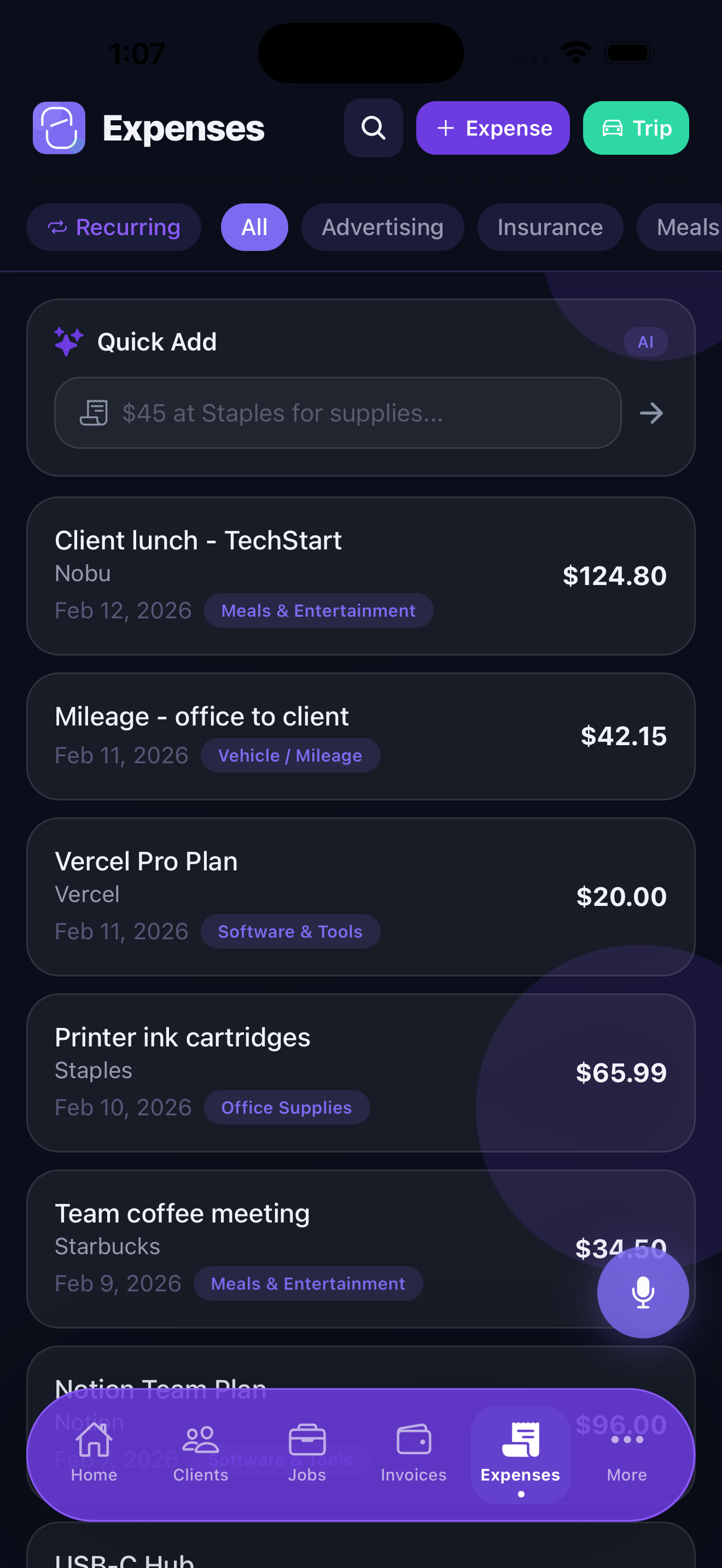
Tap the Expenses tab, then tap +. The expense form has five fields:
- Amount — enter the total you paid, including tax. Stintly stores the full amount and lets you note whether it's fully or partially deductible.
- Vendor — who you paid (e.g., Adobe, Staples, Delta Airlines). Type freely — Stintly remembers vendors you've used before and auto-suggests them.
- Category — choose from Schedule C-aligned categories (see the full list below). Getting categories right now saves significant work at tax time.
- Date — defaults to today. Change it if you're logging a past expense.
- Notes — optional. Use this for the business purpose (e.g., "client lunch with Acme Corp" or "annual domain renewal for clientname.com"). The IRS requires you to document the business purpose for deductible meals and entertainment.
Tap Save and the expense is logged instantly. It appears in your expense list and immediately reduces your net income on the Dashboard.
AI Receipt Scanning Premium
Instead of typing expense details manually, you can photograph a receipt and let Stintly's on-device AI read it for you. From the Expenses tab, tap + → Scan Receipt. Point your camera at the receipt and tap the shutter button — or choose an image from your Photos library.
The AI reads the receipt and pre-fills:
- Vendor name (from the receipt header or logo)
- Total amount (including tax line, if printed separately)
- Date of purchase
- Suggested category (based on the vendor type)
Review the filled-in fields, make any corrections, add a business purpose in Notes, and tap Save. The receipt image is attached to the expense record so you always have a digital copy if you're ever audited.
Receipt scanning runs entirely on your device using Apple's Vision framework. Your receipts are never uploaded to any server.
Voice Expense Entry Premium
When you're on the go — leaving a client meeting, walking out of a hardware store — typing is slow. Voice entry lets you speak an expense and have the AI parse it.
Tap + → Voice Entry, then speak naturally: "$47 at Home Depot for cable management supplies" or "$12.50 parking at City Hall on Tuesday." Stintly extracts the amount, vendor, and date from your words, selects the closest matching category, and presents the filled-in form for you to confirm.
Voice entry is especially useful for small, frequent expenses like parking, transit, and coffee meetings that are easy to forget if you don't log them immediately.
Mileage Tracking
Business miles are one of the most under-claimed freelance deductions. The IRS allows you to deduct a standard rate per mile driven for business purposes (the rate updates annually — Stintly always uses the current year's rate).
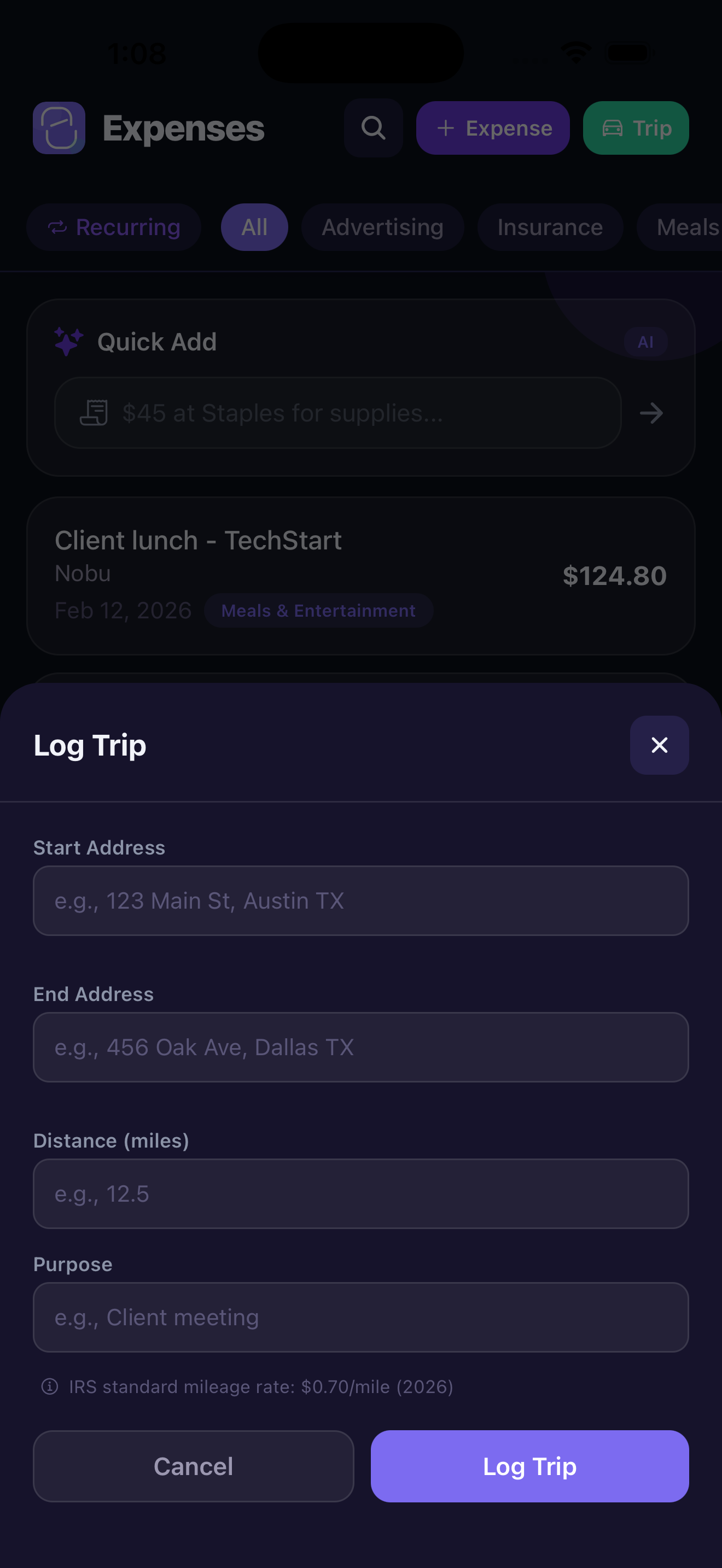
To log a trip, tap Expenses → + → Log Mileage and fill in:
- Miles driven — enter the round-trip or one-way distance
- Purpose — e.g., "Client site visit – Acme Corp" or "Office supply run"
- Date — defaults to today
Stintly multiplies your miles by the current IRS standard mileage rate and creates an expense record for the calculated deduction amount automatically. The deduction amount is categorized under Car & Truck Expenses on your Schedule C report.
You can view all your mileage logs by going to Expenses → Filter → Mileage. The total miles and total deduction for the year are shown at the top of the filtered view.
Expense Categories
Stintly's expense categories map directly to IRS Schedule C line items, which makes filing — or handing off to your accountant — straightforward. Here are the main categories:
If a category isn't a perfect fit, use Other and describe it in the Notes field. Your accountant or tax software can reclassify it later if needed.
Viewing Reports and Exporting
To see a summary of your expenses by category or time period, tap the Reports tab and select Expenses. You'll see a bar chart broken down by category and a total for the selected period (month, quarter, or year).
To export your expense data, tap Reports → Export → Expenses CSV. The CSV includes every expense field — date, vendor, amount, category, notes — formatted for import into Excel, Google Sheets, or tax software like TurboTax Self-Employed.
Recurring Expenses
Many business expenses repeat on a schedule — software subscriptions, insurance premiums, hosting fees. Instead of logging these manually each month, Stintly lets you set up recurring expenses that auto-generate on your chosen frequency.
To set up a recurring expense, go to Expenses → Recurring. Tap + and enter the expense details (amount, vendor, category) along with the recurrence schedule. Stintly creates the expense automatically each period, so your records stay current without any manual effort.
This is especially useful for tracking subscriptions — you'll always have an accurate picture of your monthly overhead costs.
Natural Language Expense Entry
Beyond voice input, Stintly also supports natural language text entry for expenses. Instead of filling in individual fields, you can type a description like "Lunch with client at Chipotle $14.50 yesterday" and Stintly's AI parses the amount, vendor, category, and date from your sentence.
This is available directly from the Expenses tab — look for the text input field at the top of the screen. Type naturally and Stintly fills in the expense form for you to review and confirm.
Tips for Clean Expense Records
- Log immediately — the best time to log an expense is the moment you pay it. Waiting until the end of the week means you'll forget small items and lose receipts.
- Use mileage for every business trip — even short drives add up. A 10-mile round trip to a client site logged 50 times a year is 500 miles, worth roughly $175 in deductions at current IRS rates.
- Always add a business purpose for meals — the IRS requires documentation of who you met with and the business reason. Put it in the Notes field at the time of purchase, not months later.
- Review categories before tax season — spend 30 minutes in January going through your expenses and correcting any "Other" items you left vague. It's much faster than explaining them to your accountant.
- Attach receipt images to high-value expenses — for anything over $75, use the AI receipt scanner or manually attach a photo. The IRS can request documentation for any business expense during an audit.
Stop guessing at your deductions.
Download Stintly free on the App Store. Log every expense as it happens and know exactly what you owe — or are owed back — at tax time.
Download on the App StoreNext: learn how to track billable time and convert hours to invoices.