Invoicing is the core of Stintly™. This guide covers everything from creating your first invoice to setting up automatic recurring billing — so you can get paid faster and spend less time chasing payments.
Creating Your First Invoice
Tap the Invoices tab in the bottom nav, then tap the + button in the top-right corner. Stintly opens the invoice editor with a new invoice number pre-assigned.
- Select a client — tap "Client" and choose from your client list, or tap "New Client" to add one on the spot. The client's billing address auto-fills.
- Set the invoice date and due date — the invoice date defaults to today. The due date uses your default payment terms (set in Settings → Invoice Defaults). Common terms are Net 15, Net 30, or Due on Receipt.
- Add line items — tap "+ Add Item" for each service or product. Enter a description, quantity, and rate. The line total calculates automatically. Add as many line items as needed.
- Apply tax — tap the tax field and enter a percentage. Tax is calculated on the subtotal and shown as a separate line.
- Add a note or payment instructions — use the Notes field to include your payment details, bank info, or a simple "Thank you for your business."
- Save or send — tap "Save as Draft" to come back to it, or tap "Send" to generate the PDF and share it immediately.
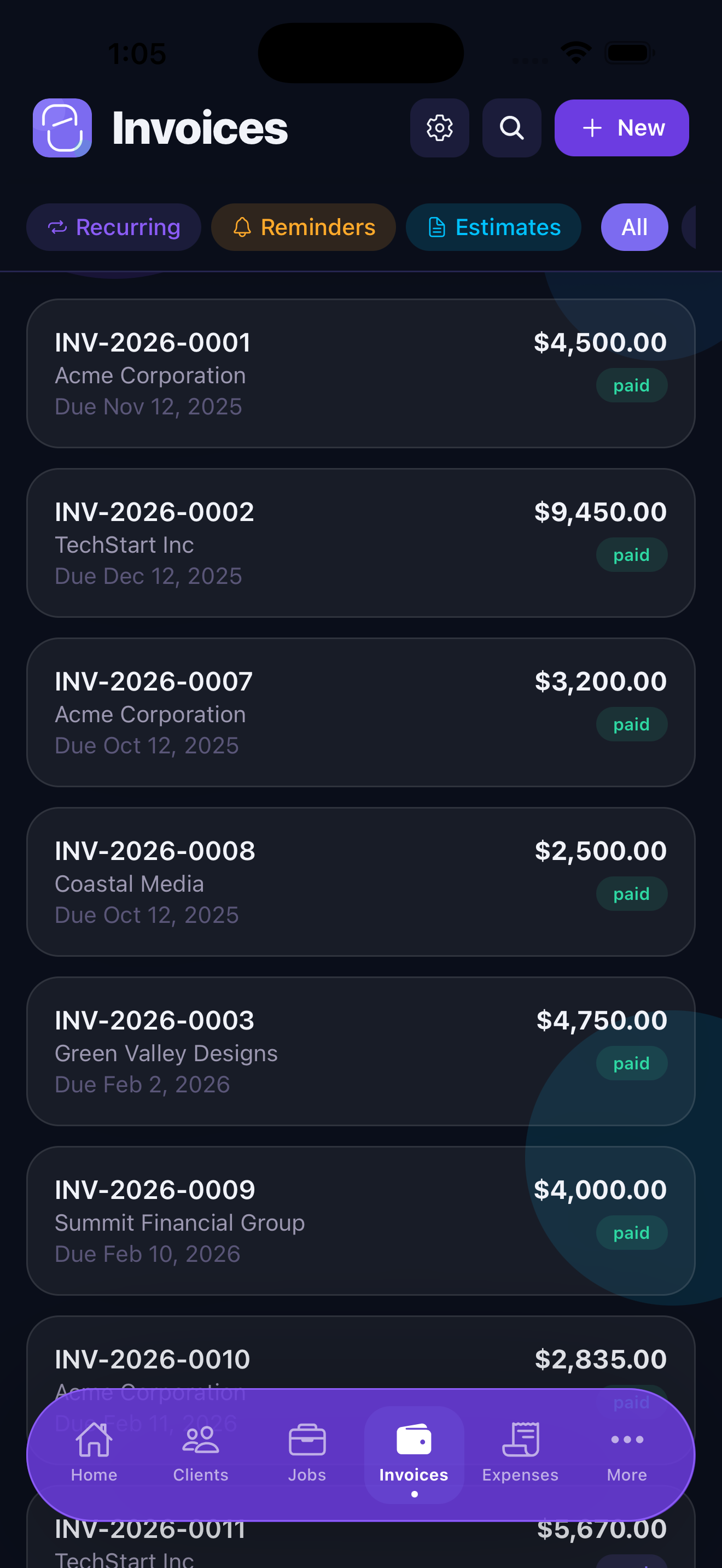
Invoice Statuses
Every invoice moves through a clear status lifecycle. You can see the status badge on each invoice in the list and tap to update it manually.
Stintly automatically moves invoices to Overdue the day after the due date passes. You'll receive a notification (if enabled) so you can send a follow-up right away.
Sending Invoices
Tap any invoice and then tap the Share button. Stintly generates a polished PDF with your logo, business details, and an itemized breakdown. From the share sheet you can:
- Email — opens Mail with the PDF attached and a pre-filled subject line
- Messages — attach the PDF to an iMessage or SMS
- AirDrop — send directly to a nearby Mac or iPhone
- Copy to Files — save the PDF to iCloud Drive or another Files location
- Any other app in your share sheet (WhatsApp, Slack, etc.)
After sharing, Stintly asks if you want to mark the invoice as Sent. Tap Yes — this updates the status and starts the due-date countdown.
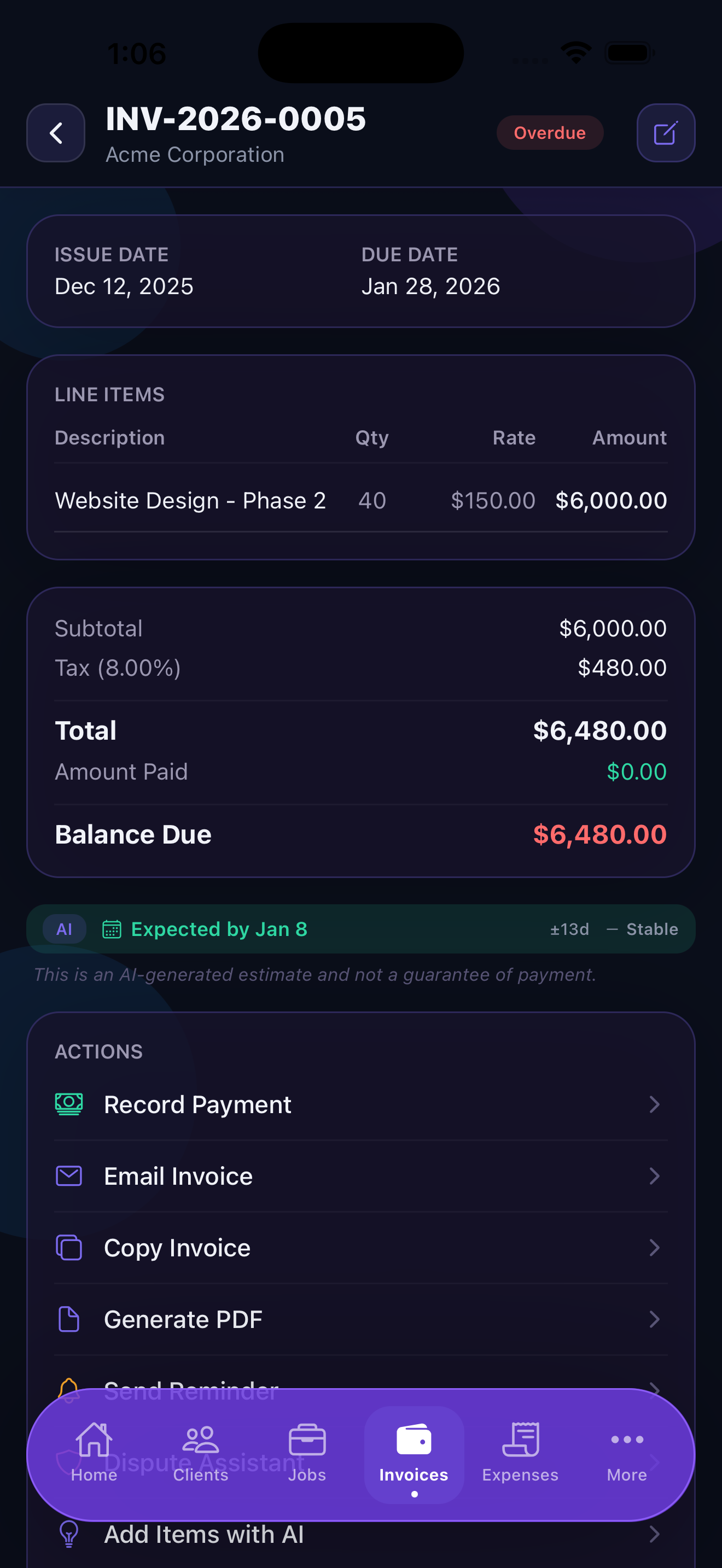
Creating Estimates and Converting to Invoices
Estimates (also called quotes) let you propose the scope and price of work before committing to an invoice. To create one, tap Invoices → + and switch the document type from "Invoice" to "Estimate" at the top of the editor.
Estimates follow the same format as invoices — client, line items, tax, notes — but they are labeled "Estimate" on the PDF and don't count toward your revenue until converted.
When the client approves, open the estimate and tap Convert to Invoice. Stintly duplicates all the line items into a new invoice, assigns the next invoice number, and sets today as the invoice date. You can edit anything before sending.
Recurring Invoices
For clients you bill on a regular schedule — monthly retainers, weekly service agreements — recurring invoices save you from creating the same document over and over.
When creating or editing an invoice, tap Recurrence and choose a frequency: weekly, bi-weekly, monthly, quarterly, or annually. Set the start date and an optional end date (or leave it open-ended). Stintly will automatically generate the next invoice in the series on schedule, saving it as a Draft so you can review it before sending.
By default, recurring invoices are created as Drafts so you can review them. You can also enable auto-send for hands-free billing.
Payment Tracking and Follow-Ups
When you receive payment for an invoice, open it and tap Mark as Paid. Enter the payment date and optionally the payment method (bank transfer, check, card, etc.). The invoice moves to Paid status and the amount is added to your collected revenue on the Dashboard.
For overdue invoices, Stintly surfaces them prominently on the Dashboard under "Needs Attention." Tap any overdue invoice to open it, then tap Share to send a follow-up reminder with the original PDF attached. Some freelancers write a brief follow-up note in the invoice's Notes field before resharing — this keeps the original line items visible while adding context.
Tips for Faster Billing
- AI Smart Invoice Generator Premium — describe the work in plain language (e.g., "website redesign, 20 hours at $95/hr, plus $200 for stock photos") and the AI fills in the line items for you. Great for complex projects.
- Add a payment link — paste your Stripe, PayPal, or Venmo link into the Notes field. Clients can pay the moment they open the PDF.
- Capture signatures on-site — Stintly supports customer signature capture on estimates, so you can get written approval before starting work.
- Use short payment terms — Net 14 or Net 7 tends to result in faster payment than Net 30. Set your default payment terms in your business profile.
- Number your invoices consistently — Stintly assigns sequential numbers automatically (INV-0001, INV-0002, etc.) so every invoice is uniquely identifiable.
Start invoicing in under two minutes.
Download Stintly free on the App Store. No account required. Your data stays on your device.
Download on the App StoreNext: learn how to track expenses and scan receipts.