For tradespeople and contractors, materials are often the biggest variable in whether a job is profitable. Lumber, fixtures, hardware, paint — the costs add up fast, and if you're not tracking them per job, you're flying blind on profitability. Stintly™ gives you a dedicated materials section on every job, plus a photo gallery to document project progress from start to finish. This guide covers both features.
Why Track Materials Separately from Expenses
Stintly distinguishes between two types of costs on a job: expenses (general business overhead like fuel, tools, and subscriptions) and materials (items purchased specifically for a job and typically passed through to the client). Keeping them separate matters for two reasons:
- Job costing accuracy — materials are a direct cost of the job, not overhead. Separating them gives you a true picture of what each job costs to deliver.
- Estimate accuracy — when you track what materials each job actually uses, you build a reference for future estimates. Over time, you'll know exactly how much lumber a deck of a given size requires, or how many fixtures a bathroom remodel typically needs.
Materials costs are deducted from a job's revenue when Stintly calculates profitability, so your job profit figures always reflect what the work actually cost you, not just your labor time.
Adding Materials to a Job
Open a job, scroll to the Materials section in the job detail view, and tap Add Material. Each material line has three fields:
- Name — describe what you bought. Be specific enough to be useful later (e.g., "2x4 framing lumber, 8ft" rather than just "wood").
- Quantity — how many units you used (pieces, gallons, bags, linear feet — whatever makes sense for the item).
- Unit Cost — the cost per unit. Stintly multiplies quantity by unit cost to calculate the total automatically, so you don't have to do the math.
Tap Save and the material appears in the job's materials list with its calculated total. You can add as many material lines as the job requires — there's no limit. The materials total updates immediately and feeds into the job's profitability calculation.
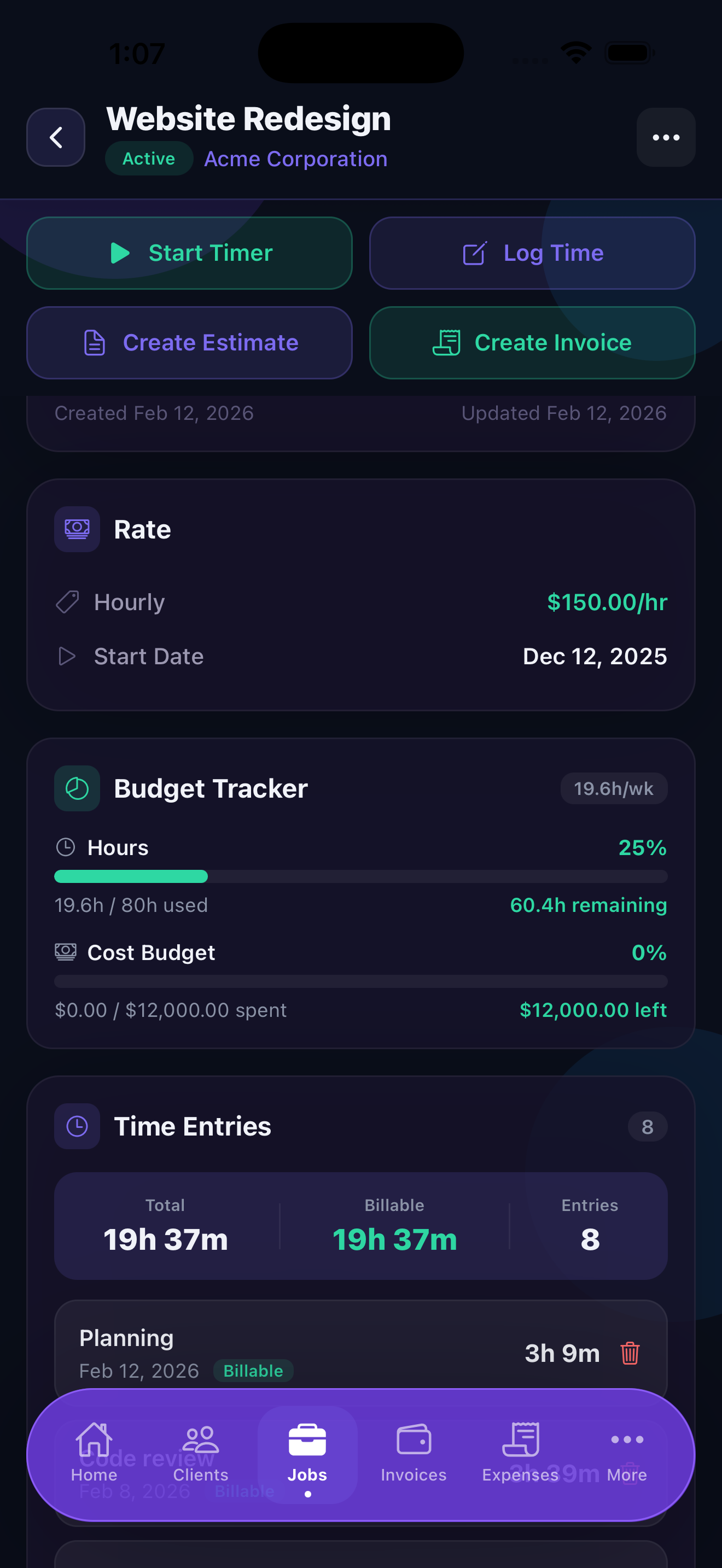
You can edit or delete any material line by tapping it. If you discover you over-ordered and returned some items, just update the quantity to reflect what you actually used.
Materials on Estimates
When creating an estimate for a client, you can add line items by type: labor, materials, or other. Using the materials type for material line items keeps your estimate organized and makes it easy to show clients a clear breakdown of what they're paying for labor versus what they're paying for materials.
A well-structured estimate might look like:
- Labor — Deck framing, 16 hours × $85/hr = $1,360
- Labor — Decking installation, 8 hours × $85/hr = $680
- Materials — Pressure-treated lumber = $620
- Materials — Composite decking boards = $1,100
- Materials — Hardware and fasteners = $140
When the client approves the estimate, Stintly converts it to a job. The materials line items carry over, giving you a ready-made materials list to shop against before the job starts.
Job Photo Gallery
Every job in Stintly has a photo gallery where you can attach images to document the project. To add photos, open the job, scroll to the Photos section, and tap Add Photo. You can take a new photo with your camera or choose existing images from your Photos library.
Each photo is tagged with one of three types to make your gallery easy to navigate:
Photos are stored on your device and linked to the specific job. They stay attached to the job record indefinitely, so you can look back at any completed job and see exactly what the site looked like at each stage.
Before photos are your single best protection against a client claiming damage that existed before you arrived. Take them at the start of every job, without exception.
Using Materials and Photos for Profitability
Stintly calculates job profitability as: Revenue − Labor Cost − Materials Cost. Both time entries (hours × your hourly rate) and materials totals are subtracted from the job's invoiced or estimated revenue. This gives you a true profit figure — not just gross revenue — for every job.
To see a job's profitability, open the job and look at the Summary at the top of the detail view. It shows total revenue, total labor cost, total materials cost, and net profit in one place. Over time, comparing profitability across similar jobs reveals which types of work are your most and least profitable, which is the foundation of a sustainable pricing strategy.
Photos support profitability indirectly by reducing disputes. A client who can see timestamped before and after photos is far less likely to withhold payment over a claimed defect. And when photos show the scope and quality of your work, they also make the case for your rates.
Tips for Materials and Photos
- Photograph materials receipts — if you buy materials at a supply house and keep the receipt, snap a photo and attach it to the job under the During or After category. You'll have proof of cost if a client questions a materials line item on the invoice.
- Add materials before you shop — use the estimate or job materials section as your shopping list. It keeps you from buying more than you need and gives you a record of what each item cost.
- Document before and after for every client-facing job — even small jobs. It takes 30 seconds and has saved contractors significant amounts in disputes and bad reviews.
- Review materials costs when building future estimates — look at what past similar jobs actually used and cost. Actual data beats gut feel every time and leads to estimates that win work without leaving money on the table.
- Tag during-progress photos to share with clients — if a client is curious about progress on a multi-day job, exporting a photo from the gallery and sending it is a simple way to keep them informed and build trust.
Know exactly what each job earns you.
Download Stintly free on the App Store. Track labor, materials, and photos for every job and see your true profit at a glance.
Download on the App StoreNext: learn how to manage clients and organize work into jobs.